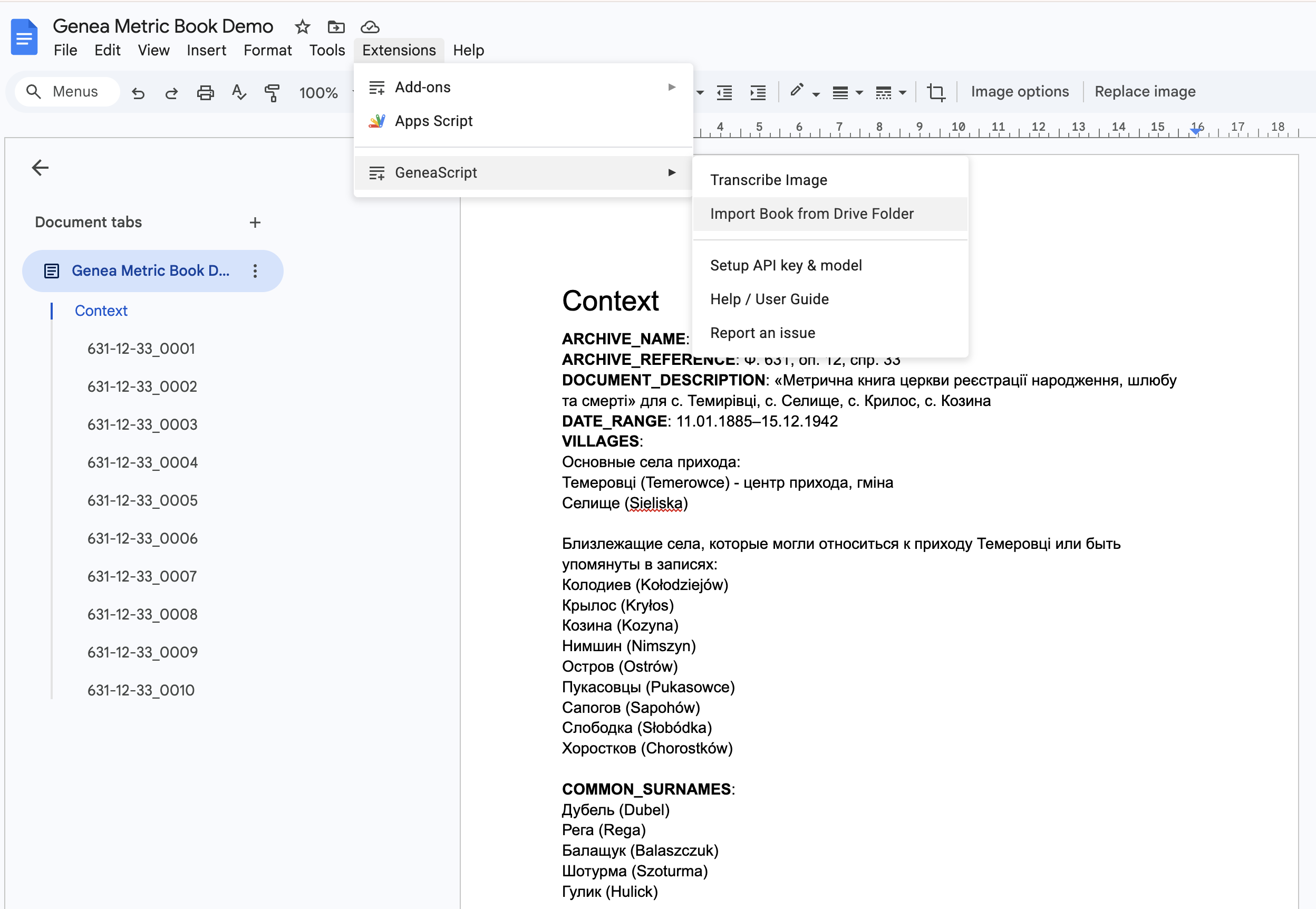
This add-on helps you transcribe images of metric books (birth, marriage, death registers) using Google™ AI (Gemini™). You can import scan images from a Google Drive™ folder into a document (with a Context block and source links), then transcribe selected images; the add-on inserts the transcription directly below the selected image with clear formatting.
Create document & import images
flowchart LR
  A[📄 Create new Doc] --> B[📁 Import images from Drive]
  B --> C[✅ Review Context + images in doc]
Transcribe flow
flowchart LR
  D[🔑 Setup Key / Model] --> E[🖼️ Select image]
  E --> F[✍️ Transcribe]
  F --> G[✅ Review results]
Repeat Select image → Transcribe → Review for each page you want to transcribe.
Menu overview
Use this to create a document with a Context section and all scan images from a folder in one go.
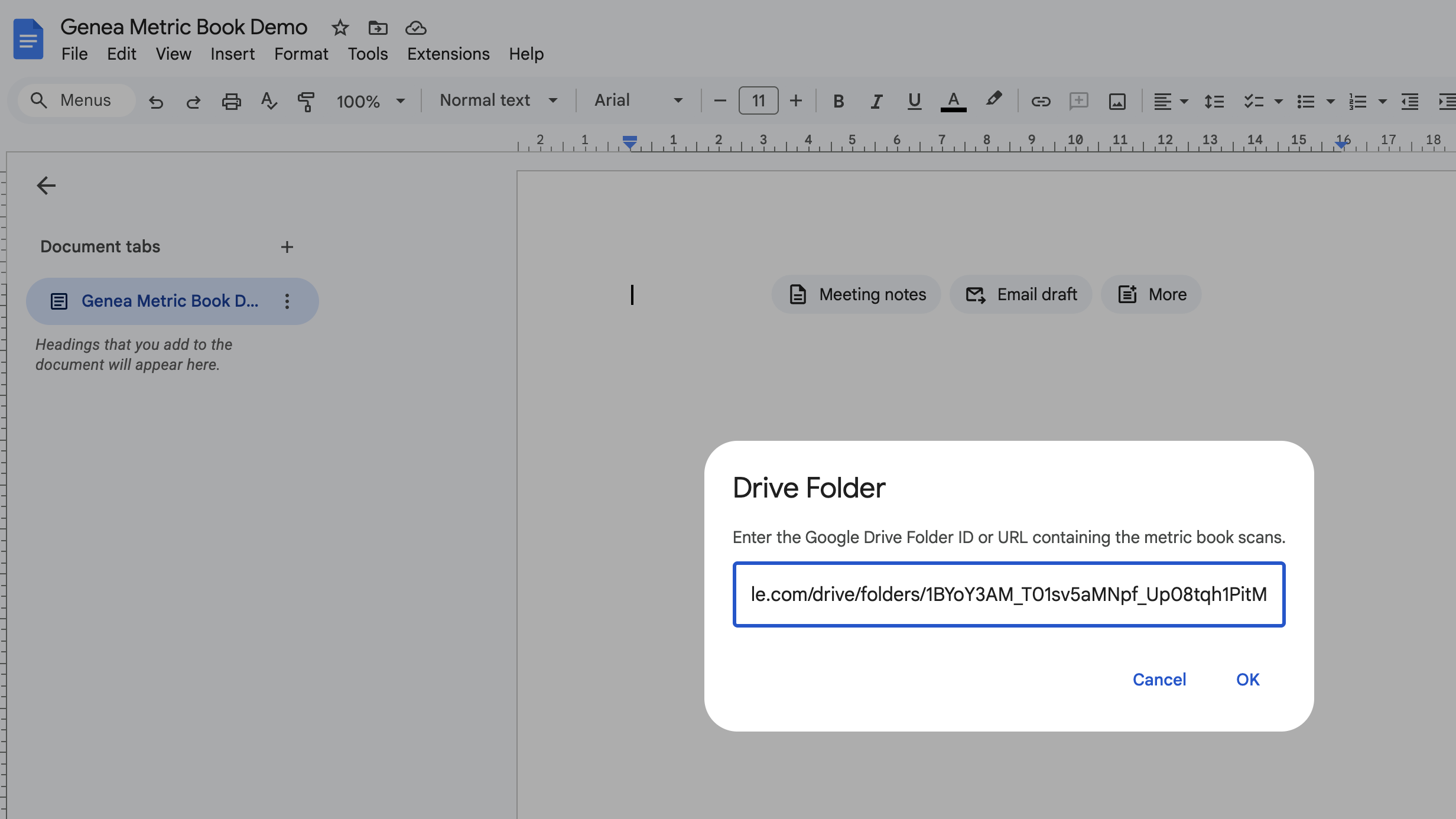
When prompted, paste the Google Drive folder URL or folder ID that contains your metric book scans. You can copy the URL from the address bar when the folder is open in Drive (e.g. https://drive.google.com/drive/folders/...).
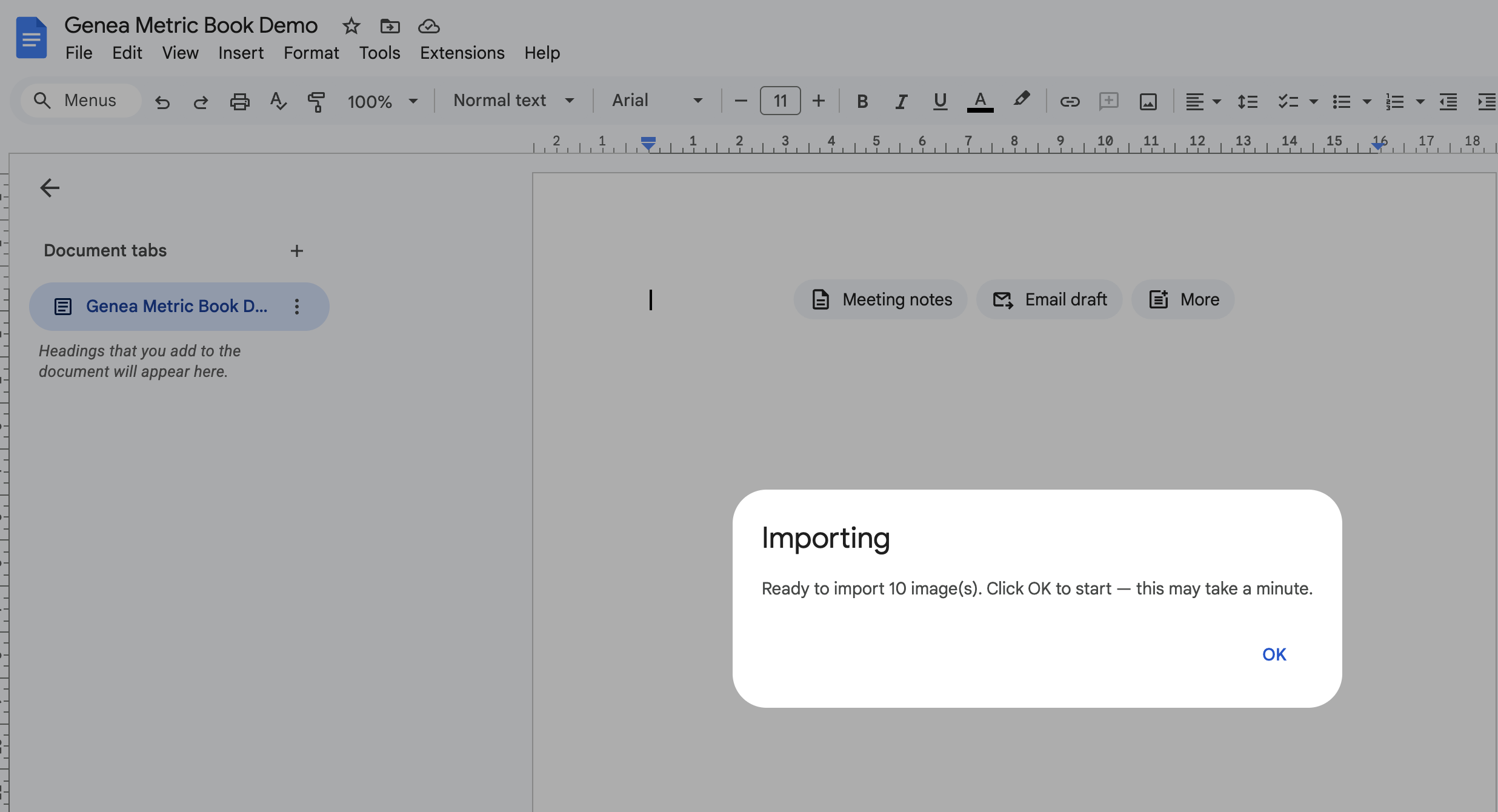
When the import finishes, you’ll see how many images were added (and how many skipped, if any). You can now run Transcribe Image on any of them (see below).
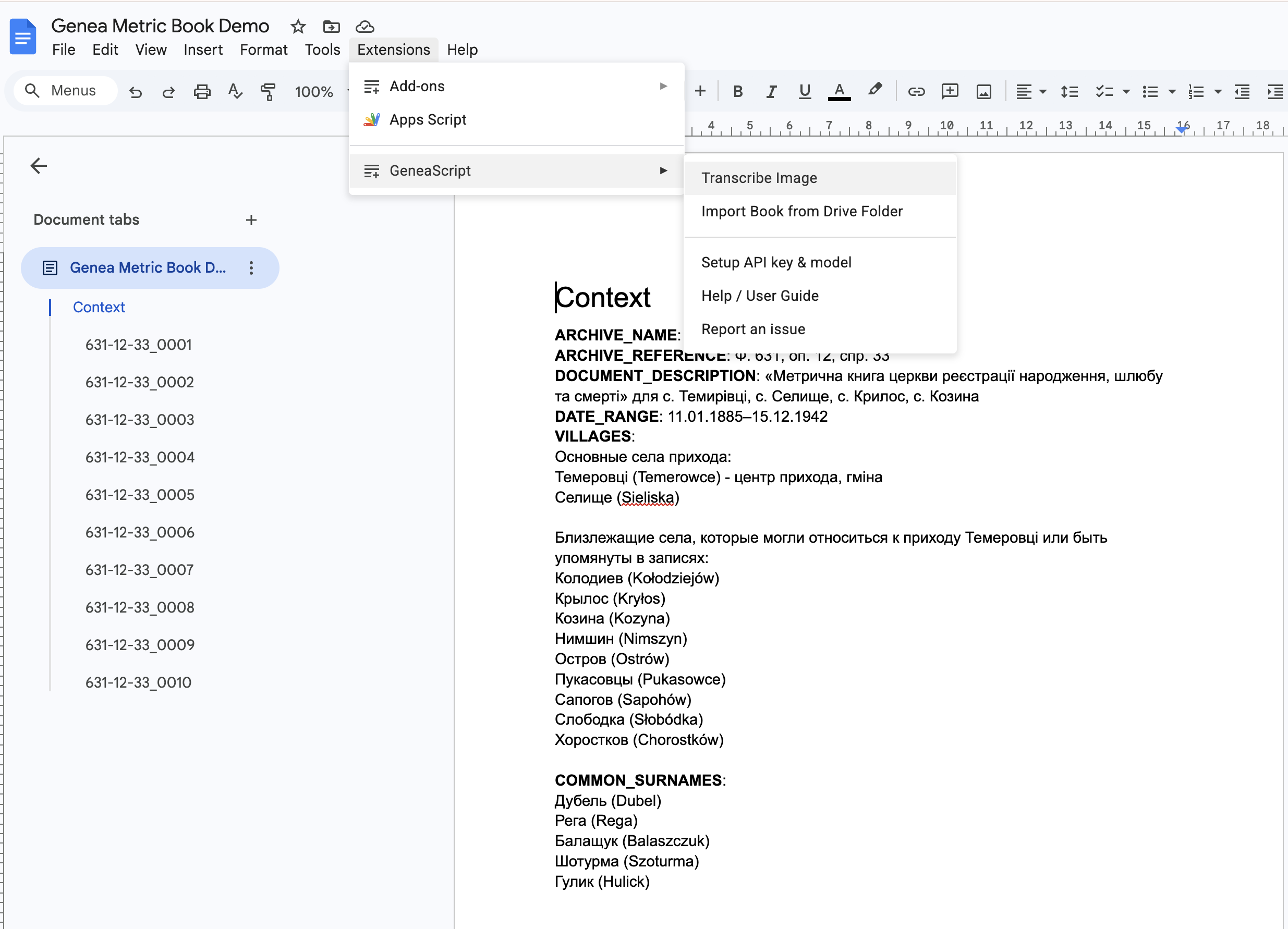
📌 Notes: The folder must be one you own or that’s shared with you. Very large or invalid images may be skipped; the add-on reports how many were skipped. Edit the Context block with your actual archive and locality details before transcribing for best results.
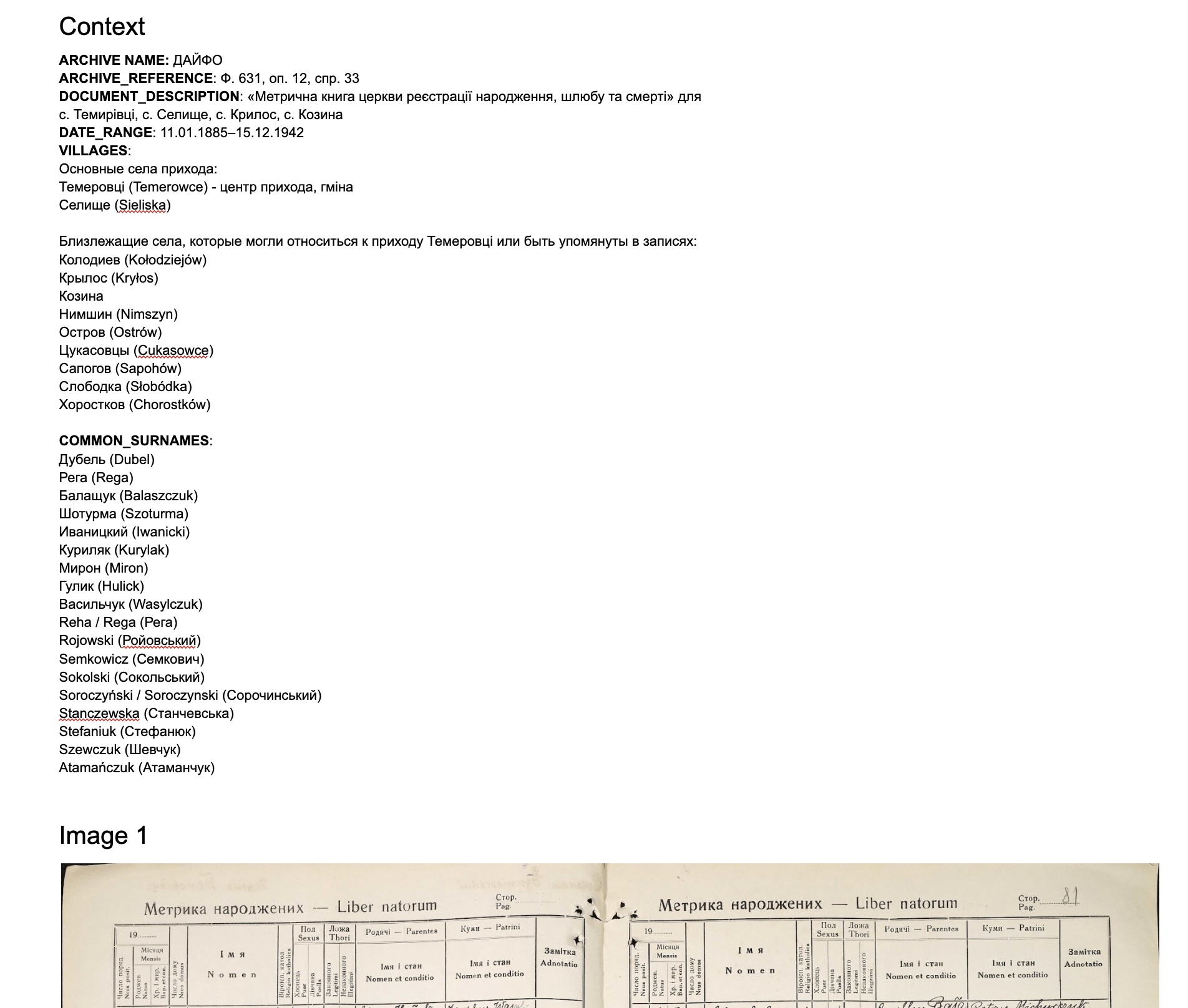
The add-on sends all text under the heading “Context” to the model. Use plain text or short lines; no special format is required.
Open Extensions → Metric Book Transcriber → Transcribe Image.
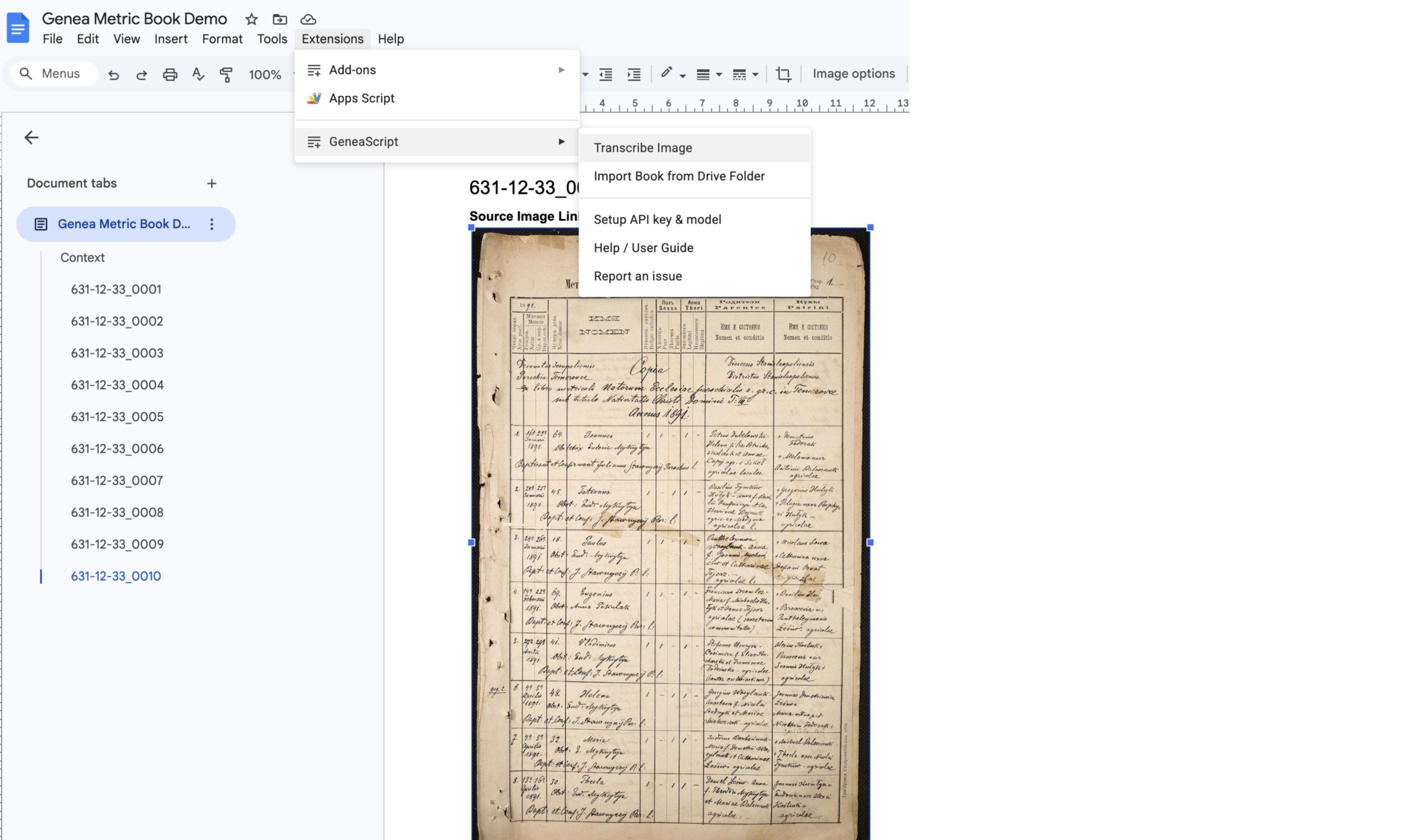
🔑 First time only — API key & model setup: If no API key is configured yet, a “Set API Key” dialog appears. It includes a link to Google AI Studio™ where you can get a free key (sign in, click Create API key, copy it). In the dialog you can also choose the model: default is Gemini Flash Latest (free tier ~20 requests/day); other options include Gemini 3.1 Flash Lite (500 requests/day) and Gemini 3.1 Pro Preview (best quality, billing). Paste the key, pick a model, and click Save & Continue. The key and model are saved and the transcription proceeds. To change them later, use Setup API key & model from the add-on menu. See rate limits for free tier and billing.
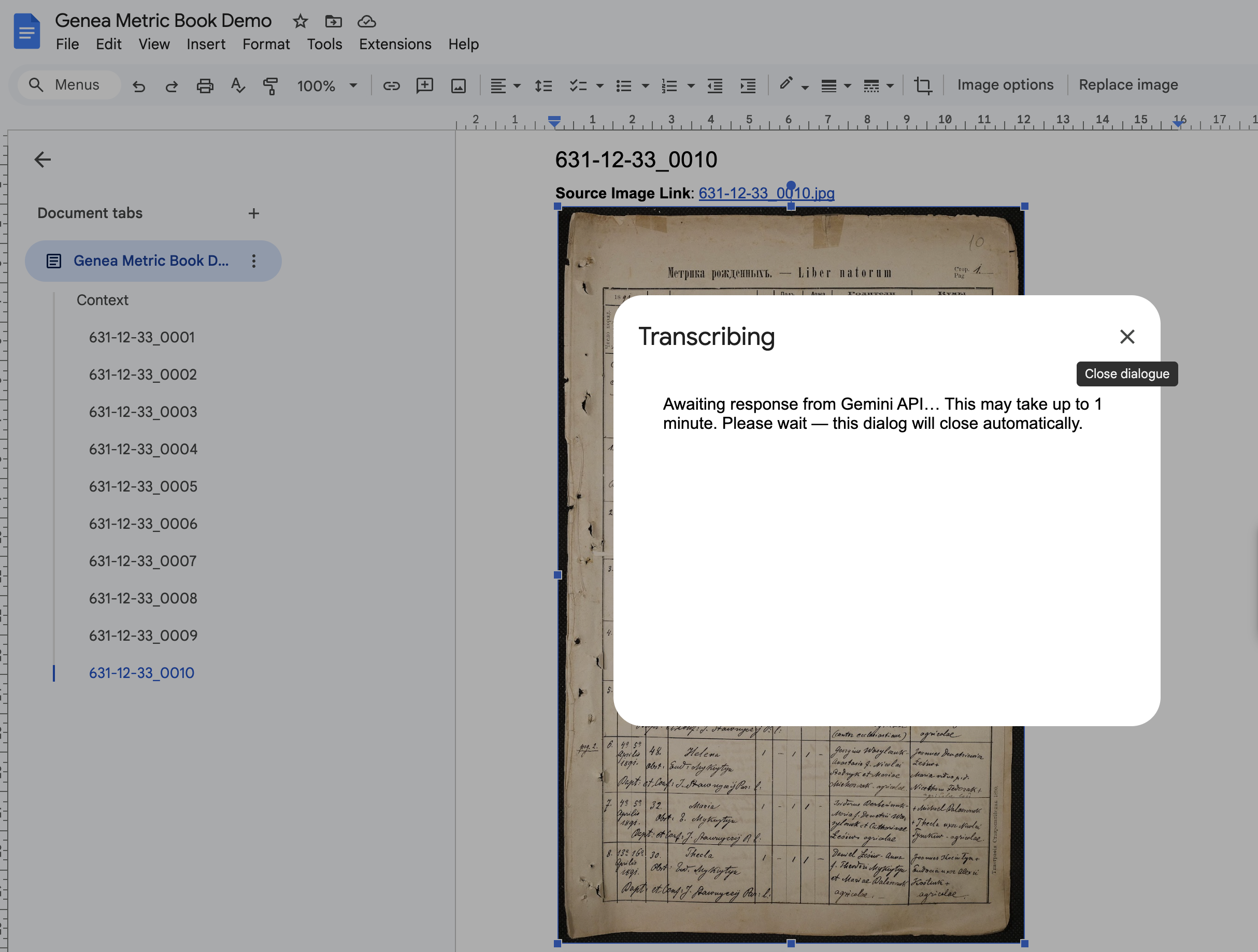
A dialog appears: “Awaiting response from Gemini API… This may take up to 1 minute.” Leave it open until the request finishes (the status bar may show “Working…”).
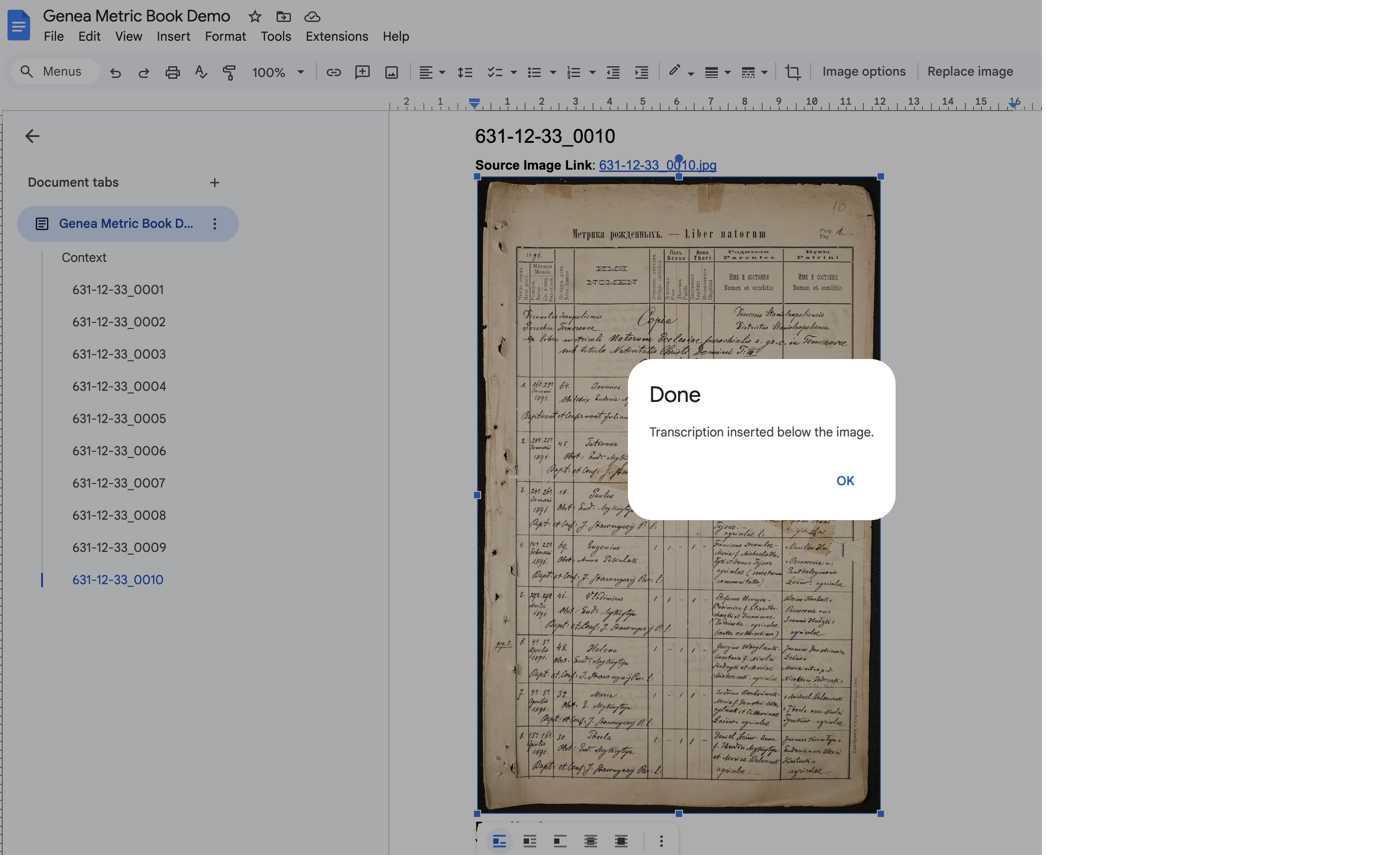
When the add-on finishes, the dialog closes and you see “Done — Transcription inserted below the image.” The transcription is inserted directly under the selected image (not at the end of the document).
✅ Review and edit the result in the document. Quality Metrics and Assessment lines are colored (blue and red) so they stand out from the historical data.
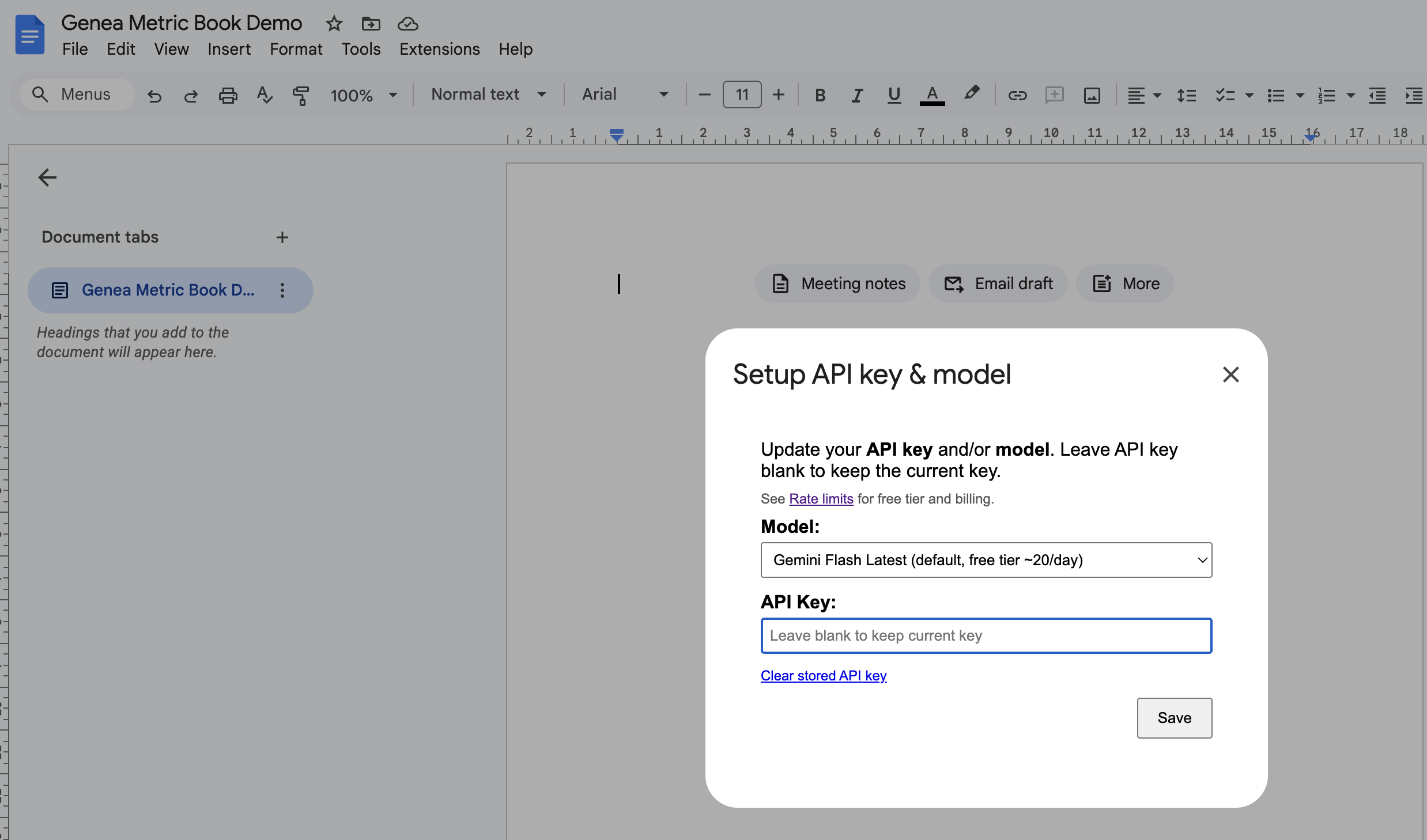
To change your API key or Gemini model anytime (for example after hitting free-tier limits or to try a different model), use Extensions → Metric Book Transcriber → Setup API key & model. In the dialog you can pick a model, enter a new API key (or leave it blank to keep the current one), and click Save. Use Clear stored API key to remove your key so you’ll be prompted again on the next Transcribe.
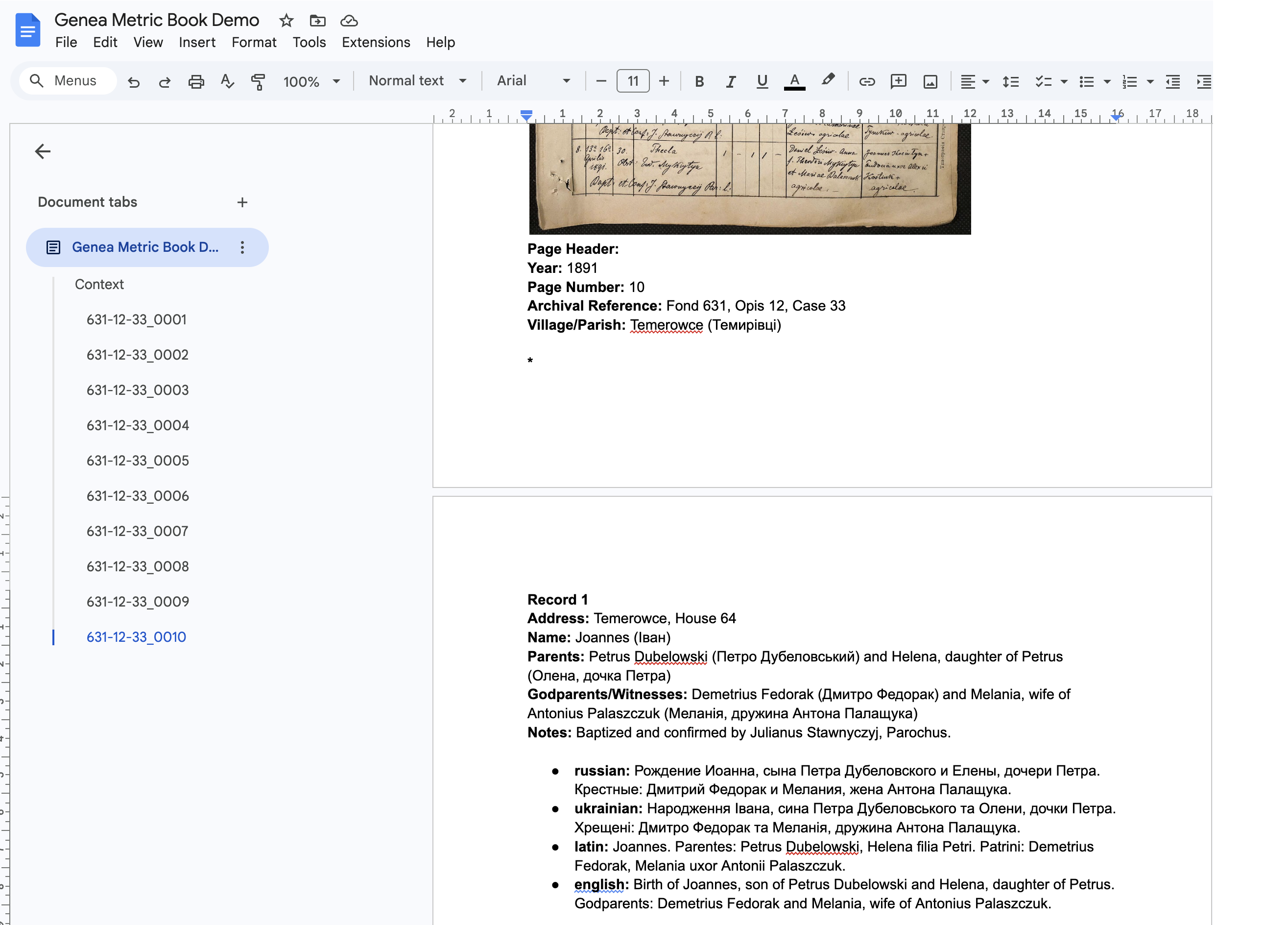
The transcription includes:
Blank lines separate records for readability. You can edit any of this text in the document.
| Issue | What to do |
|---|---|
| “Please select a single image” | Click on one metric book image so it is selected, then run Transcribe Image again. |
| Invalid Drive Folder link | Paste the full folder URL from the Drive address bar (e.g. https://drive.google.com/drive/folders/...) or the folder ID. Use a folder link, not a file. |
| Cannot access folder | The folder must be owned by you or shared with you. If you added Drive access recently, re-authorize (revoke the app in Google Account → Third-party apps, then run Import again). |
| No images found in this folder | Only JPEG, PNG, and WebP are imported. Add at least one image in one of these formats. |
| Some images skipped | Very large or invalid images may be skipped; the add-on reports how many. Resize or re-export large scans if needed. |
| “Set API Key” dialog / API key prompt | The add-on prompts for a key and model on first use of Transcribe Image. Get a free key at Google AI Studio, paste it, choose a model, and click Save & Continue. To change key or model later, use Extensions → Metric Book Transcriber → Setup API key & model. See INSTALLATION.md. |
| “Authorisation is required to perform that action” | Usually means you are a collaborator on the doc and haven’t authorized the add-on for your account. Open Extensions → Metric Book Transcriber and complete the authorization when prompted. |
| Quota exceeded / 429 / rate limit | Free tier has limited requests per day. The add-on shows the error in the dialog. Check rate limits; switch model or enable billing via Setup API key & model if needed. |
| Request failed / API error | Check that your API key is valid and that the Generative Language API is enabled. If you see a quota or billing message, check rate limits and your Google AI or Cloud project settings. |
| Timeout | The add-on waits up to about 60 seconds. If the request times out, try again or use a smaller/simpler image. |
| Empty or odd transcription | Ensure the selected element is the image (not a drawing or text). Add or improve the Context section and try again. |
| Transcription at bottom of doc | Ensure you have the latest script; insertion uses the body-level block containing the selected image. Select the image and run again. |
For installation and API key setup, see INSTALLATION.md.